How to import, export, and share Guitar Pro files
The best sharing format depends on what the recipient needs to do next. Send a Guitar Pro file for interactive editing, PDF for reading or printing, MusicXML for notation exchange, MIDI for note and timing data, or rendered audio when the recipient only needs to listen or play along.
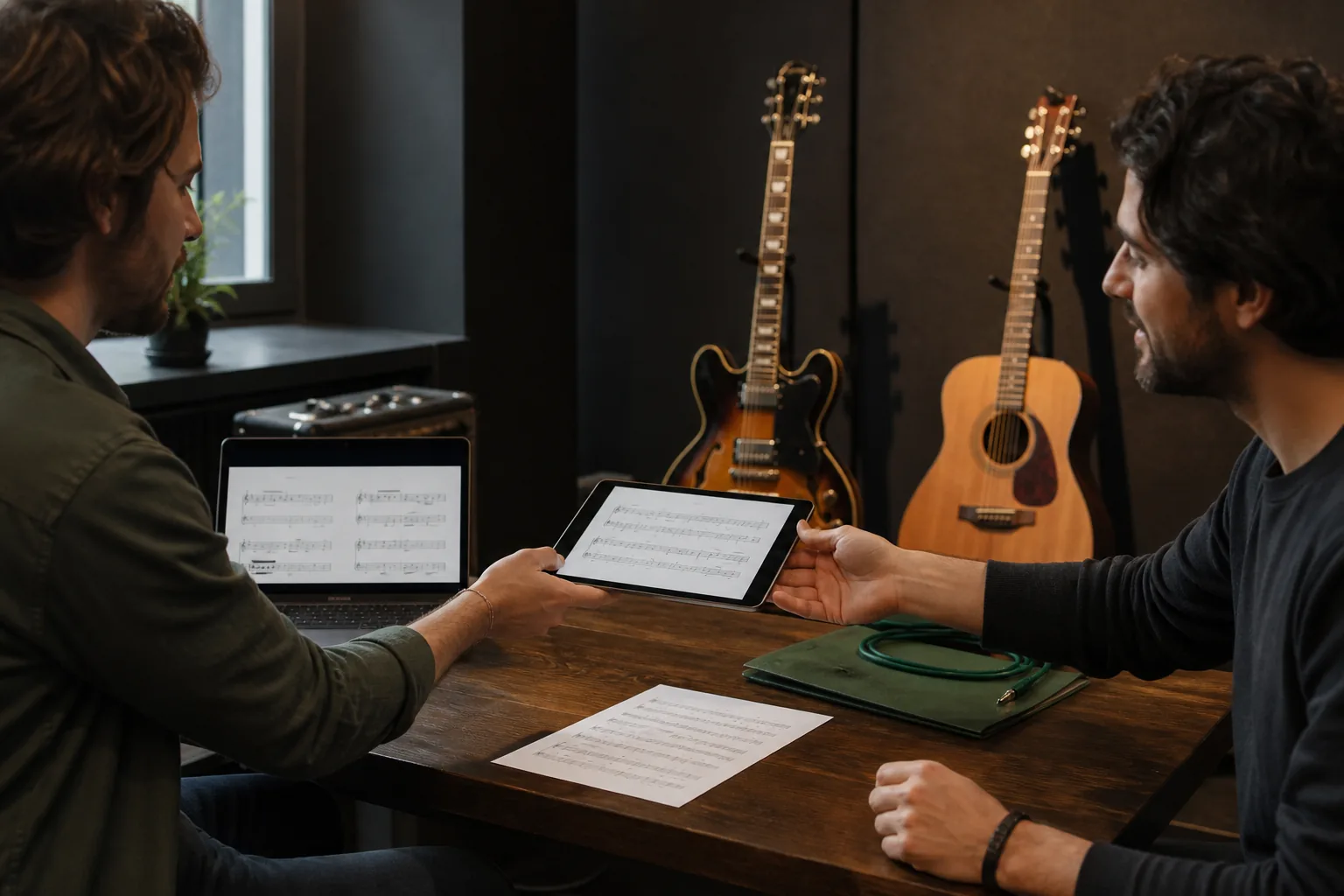
The practical answer
Choose the format from the recipient’s next task, then reopen the exported file and verify it before sharing.
A step-by-step approach
-
1
Identify the recipient’s next task
Decide whether the recipient needs to edit the score, print it, open it in notation software, continue in a DAW, or simply listen and practise.
-
2
Keep a Guitar Pro master file
Save an editable .gp master before exporting. This preserves the most complete version of the tablature, playback settings, tracks, and Guitar Pro-specific notation.
-
3
Choose the exchange format
Use PDF for reading, MusicXML for notation software, MIDI for note and timing transfer, or an audio format for playback and backing tracks.
-
4
Prepare only the tracks the recipient needs
Check track names, mute or isolate parts where appropriate, set the tempo, and remove private notes or unfinished material before exporting.
-
5
Export and reopen the result
Open the PDF, import the MIDI or MusicXML into the destination program, or listen to the complete audio render before sending it.
-
6
Send the master and derivative when useful
For collaborators, provide the editable Guitar Pro file plus a PDF or audio reference so the intended notation, layout, and sound are clear.
Choose a format by outcome
A Guitar Pro file is the best starting point when another Guitar Pro user needs interactive playback, tablature, multiple tracks, and editing. A PDF is better for a musician who needs a fixed page to read, print, or annotate without specialist software.
MusicXML is designed for moving notation between score editors. MIDI is primarily useful for transferring pitches, note timing, tempo, and track information into a DAW or other MIDI-aware application. Rendered audio is the simplest choice for listening, rehearsal, or a backing track.
What Guitar Pro 8 can import
Guitar Pro 8 officially supports Guitar Pro formats including .gtp, .gp3, .gp4, .gp5, .gpx, and .gp, along with PowerTab, MIDI, ASCII tablature, TablEdit, and MusicXML. The Audio Track feature can also bring audio such as MP3 or WAV into a score as a synchronised reference.
An audio import does not identify the notes or generate tablature automatically. PDF is not an import format in Guitar Pro 8, so a PDF score must be entered manually or obtained from its original editable source.
What to expect from MusicXML and MIDI
Choose MusicXML when conventional notation, measures, voices, articulations, and score structure matter in the destination notation program. After importing, check layout, voices, chord symbols, guitar fingerings, and techniques because exchange formats are not guaranteed to reproduce every application-specific detail.
Choose MIDI when the destination is a DAW, sequencer, or virtual instrument. MIDI carries musical performance data rather than the visual score, so expect to rebuild page layout and verify guitar-specific techniques, sounds, and articulations after transfer.
Create a useful PDF or audio handoff
Before making a PDF, review the page size, line breaks, title, artist, tuning, tempo, track label, and copyright information. Open the finished PDF at normal reading size and confirm that no systems, chord diagrams, or annotations have been clipped.
Guitar Pro can export audio and offers formats including MP3, WAV, FLAC, OGG, and AIFF. Audio export can be used for a complete mix or separate tracks, and official guidance documents options for adding a metronome or count-in. Listen past every tempo change and the final bar before sharing.
Make collaboration easier to verify
Use clear filenames that include the song, instrument or arrangement, revision, and date. Preserve the .gp master and export derivatives from that source instead of repeatedly converting between exchange formats.
For bandmates or students, send the editable file together with a PDF or audio reference when possible. State the tuning, capo position, tempo, and expected software version in the message, and only distribute music in ways permitted by the relevant copyright and licence terms.
Common questions
Sources and review notes
Product details were checked against the official sources below on 9 August 2026. Offers and software details can change, so confirm current terms before buying.