Fix no sound, distorted playback, and latency in Guitar Pro 8
Audio faults that feel similar often have different causes. Start by identifying whether Guitar Pro is silent, failing to move through the score, breaking up during playback, or responding late to a live input.
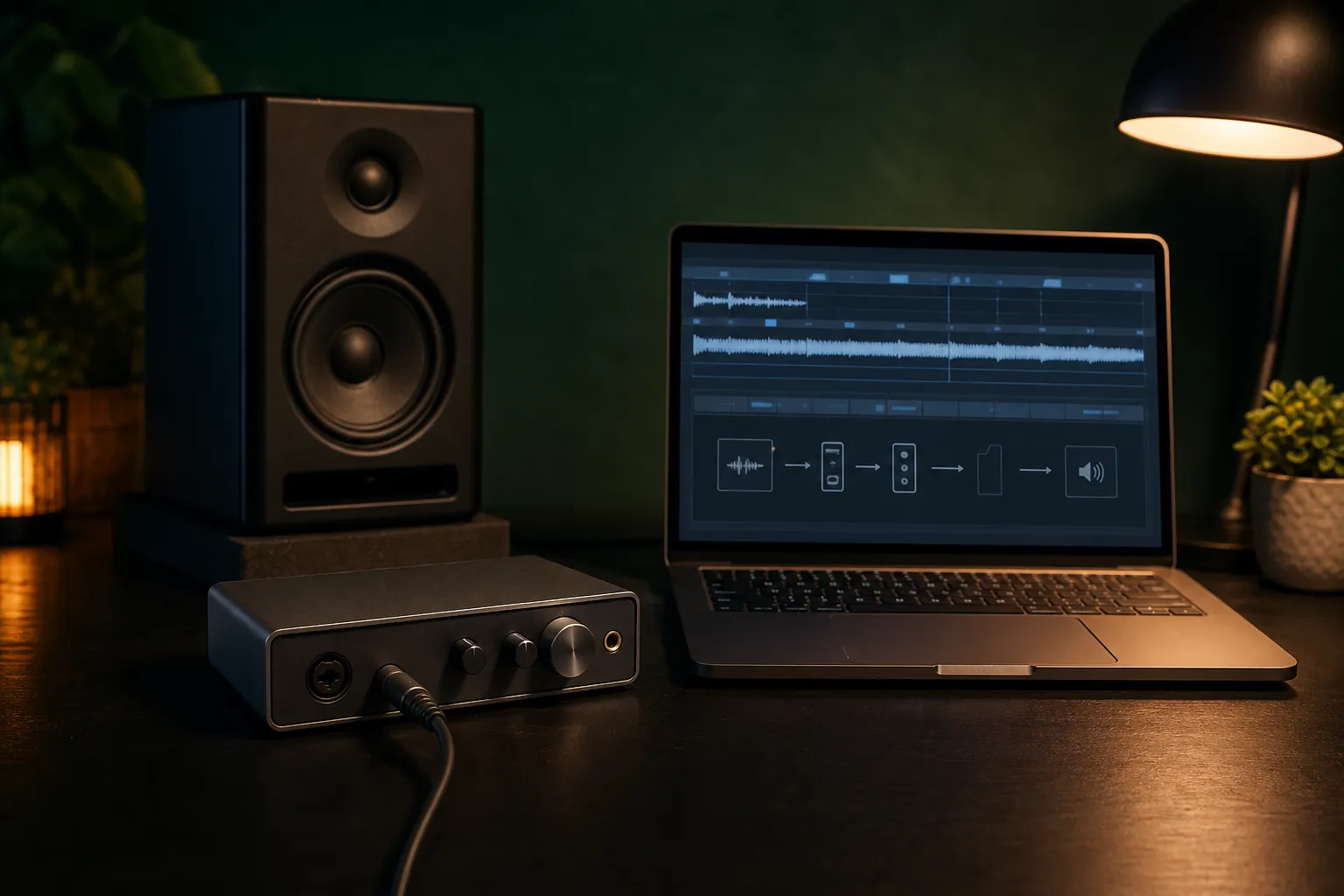
The practical answer
Check the signal path in order: soundbanks, playback state, selected device, operating-system permissions, sample rate, driver, then buffer size.
A step-by-step approach
-
1
Classify the fault
Play a known-good file and note whether the cursor moves, whether every track is silent, and whether the problem is silence, distortion, or delay.
-
2
Verify sounds and routing
Confirm the RSE soundbanks are installed, then select the intended device and output in Audio/MIDI preferences.
-
3
Remove input conflicts
On Windows, test with Audio Input set to None; on macOS, test the built-in microphone input if playback is garbled.
-
4
Stabilise the audio device
Update the interface driver, use a 44.1 kHz sample rate where recommended, and avoid unnecessary Bluetooth routing while diagnosing.
-
5
Tune the buffer
Raise the buffer if audio crackles or drops out; lower it carefully when live-input latency is the main problem.
First identify which failure you actually have
If the playback cursor moves but nothing is audible, focus on soundbanks, track mute and solo states, the master level, and the selected audio output. If the cursor does not move at all, treat that as a playback or device-initialisation fault rather than merely a volume problem.
Test with a second, known-good Guitar Pro file and a simple internal output such as the computer speakers. That comparison quickly separates a damaged score or unusual track setup from an application-wide routing problem.
Fix silence before changing performance settings
Guitar Pro support places the RSE soundbanks first in its no-sound checklist. Run the current installer again if necessary and ensure the soundbanks are included, then open Audio/MIDI preferences and explicitly select the device and output you intend to hear.
Also inspect the score itself: clear unintended mute or solo buttons, bring up track and master volume, and confirm the track has a usable sound. Resetting preferences is a last application-level step after routing and soundbank checks, because it also removes customised settings.
Treat crackles and distortion as stability clues
For an external interface, install the manufacturer’s current driver or control software and make sure Guitar Pro is using that device. Guitar Pro’s support guidance recommends a 44.1 kHz sound-card rate; a disagreement between the interface, operating system, and application can produce garbled playback.
Input selection can matter even when you only want playback. Guitar Pro advises Windows users with garbled audio to test Audio Input set to None, while macOS users can test the built-in microphone input. Change one variable at a time so the successful fix is obvious.
Use buffer size to trade responsiveness for reliability
A buffer that is too small gives the computer too little time to prepare audio, causing pops, crackles, or dropouts. Increase it one step, replay the same demanding section, and stop once playback is stable rather than choosing the largest value automatically.
A larger buffer adds delay to Line-In monitoring, so live players should work back down after stability is restored. Guitar Pro recommends an ASIO-compatible external device on Windows or Core Audio-compatible device on macOS for low-latency input.
Collect useful evidence before escalating
If the problem survives updates, routing checks, driver changes, and buffer tests, record the operating system, exact Guitar Pro version and build, interface model, and selected Audio/MIDI settings. Note whether the issue affects every file and every output.
An audio export or short screen recording can distinguish a rendering fault from a monitoring fault. If an exported file sounds clean while live playback does not, the score is probably fine and the remaining problem sits in real-time device routing or buffering.
Common questions
Sources and review notes
Product details were checked against the official sources below on 9 August 2026. Offers and software details can change, so confirm current terms before buying.