Create and use scale diagrams in Guitar Pro 8
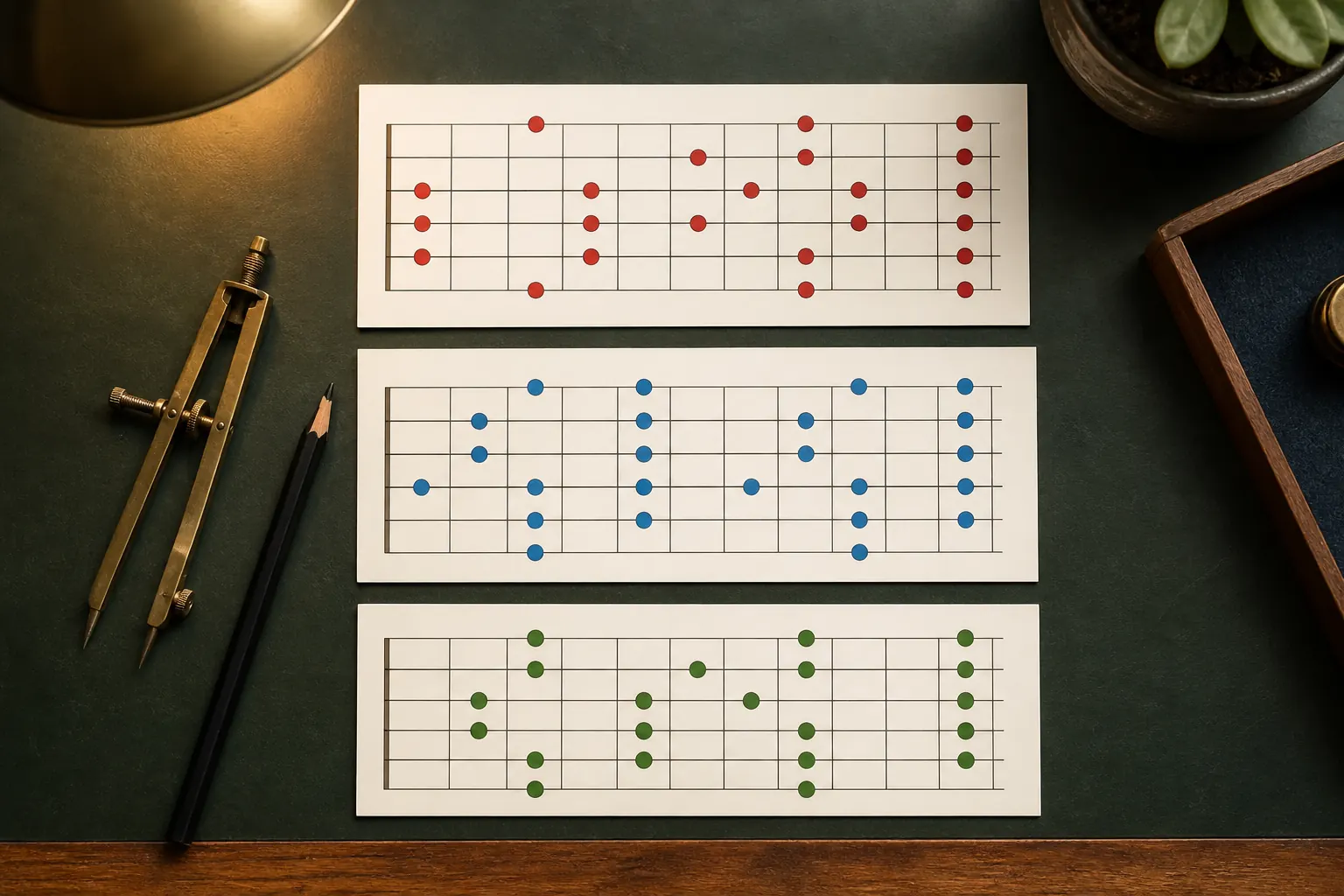
Guitar Pro 8 can create editable scale diagrams for stringed instruments with 3 to 10 strings and up to 24 frets. A useful diagram shows one playable position, distinguishes the root, and supports a specific lesson, lick, chord, or improvisation task rather than displaying every available note at once.
The practical answer
Design one diagram around one musical job: choose a practical fret range, mark the root clearly, and pair the shape with notation or an exercise that makes it playable.
A step-by-step approach
-
1
Define the musical purpose
Choose a key, scale, chord relationship, and playable fretboard position before opening the diagram editor.
-
2
Set the grid
Choose the number of strings, frets, starting fret, and orientation that match the instrument and position.
-
3
Place and identify notes
Add note markers and use a consistent shape, color, or short label to distinguish roots and other important tones.
-
4
Insert the diagram
Attach it to the beat where the scale becomes relevant and use Design Mode or layout settings to improve the surrounding spacing.
-
5
Test it as an exercise
Play the position ascending, descending, and over its musical context to confirm that the diagram is accurate and practical.
Start with a musical question
Decide whether the diagram teaches a scale position, maps chord tones, explains a mode, or supports a specific lick. That decision determines the fret range and which notes deserve emphasis. A diagram with every theoretical option often teaches less than a smaller playable shape.
Confirm the track tuning and string count first. A familiar six-string pattern can become wrong or physically impossible when copied to a seven-string guitar, bass, ukulele, or alternate tuning without review.
Build a clear diagram
Guitar Pro 8 officially supports diagrams for instruments from 3 to 10 strings and up to 24 frets. Set the starting fret and number of displayed frets so the position is readable, then choose an orientation that matches the surrounding material.
Place note dots carefully and distinguish the root with one consistent visual treatment. Other colors, shapes, or short labels can identify chord tones or scale degrees, but use them sparingly and explain any custom system in nearby text.
Insert it where the player needs it
Attach the diagram to the beat or passage where its information becomes relevant. Guitar Pro support has clarified that a scale diagram is linked to a specific beat and cannot be freely dragged anywhere as an independent page object.
If the diagram crowds the score, adjust the related beat or system with Design Mode and review Stylesheet spacing for scale diagrams. Avoid forcing so many charts into one system that the notation becomes secondary.
Turn the shape into practice
Write a short exercise or lick using the same position. Play the scale ascending and descending, in small sequences, and over a chord or backing part. This checks whether the indicated notes, root, and fret range work in musical context.
Use the fretboard view during playback if it helps connect the diagram to sounding notes. A diagram should guide movement, but the goal is to hear and use the scale rather than memorise a static collection of dots.
Proof before sharing
Check the tuning, root, note set, enharmonic naming, orientation, starting fret, and string count. Then export a test PDF to confirm that dot colors, labels, and diagram size remain legible at the intended page size.
If several diagrams appear in one guide, keep their visual language consistent. The same color should not mean root in one chart and chord tone in another unless the change is explicitly explained.
Common questions
Sources and review notes
Product details were checked against the official sources below on 9 August 2026. Offers and software details can change, so confirm current terms before buying.