Guitar Pro shortcuts and Command Palette: a faster editing workflow
The fastest workflow is not a giant shortcut list. It is a small set of repeated navigation and editing keys, backed by the Command Palette for actions you use less often.
The practical answer
Memorise shortcuts for your highest-frequency actions and use Ctrl+E or Cmd+E as the searchable route to everything else.
Use the Command Palette as your searchable control centre
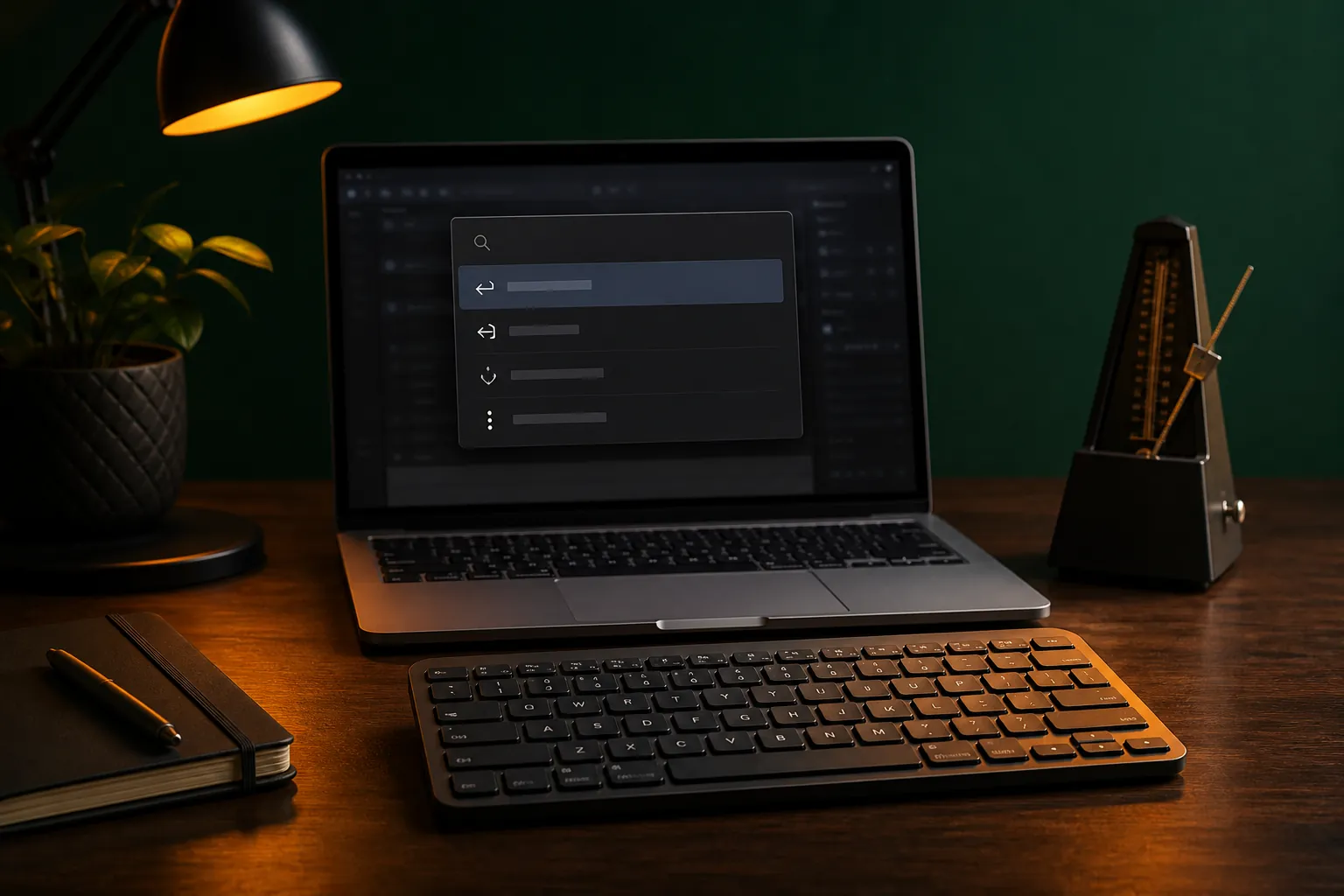
Guitar Pro 8 opens the Command Palette from Tools or with Ctrl+E on Windows and Cmd+E on macOS. Type the action you need instead of scanning several palettes, then apply the matching command to the current note or selection.
The official tips distinguish quick commands, which run directly, from advanced commands that need additional input. Some actions require a selection first, so select the affected notes or bars before assuming a command is unavailable.
Learn the palette’s discovery shortcuts
Enter a question mark to see available prefixes and commands. This turns the palette into a learning tool: search by musical intention such as palm mute, rather than memorising the location of an icon.
Enter @ to search actions exposed in the application’s top menus. That is especially useful for occasional file, track, note, and help commands that do not deserve space in your permanent memory.
Memorise a compact high-value shortcut set
Start with playback, navigation, note duration, delete, copy, paste, undo, and selection. Add F4 for Check Bar Duration when correcting rhythm, and learn Alt+Up or Alt+Down on Windows, or Option+Up or Option+Down on macOS, to move a note to another string while retaining its pitch.
The right shortcut set depends on the work. A transcriber benefits from playback and navigation keys; an arranger benefits from track, automation, and layout controls. Add a shortcut only after you reach for the same action repeatedly.
Use selections to make commands predictable
Many notation effects apply to the current note, beat, or selected range. Before invoking a command, confirm what is highlighted and whether the cursor is in the intended voice; this prevents a fast command from becoming a fast mistake.
For repeated formatting, perfect one short passage, copy it, and then change pitches or rhythms. This preserves articulations and reduces the number of separate commands, but always review bar duration after structural edits.
Turn shortcuts into a repeatable workflow
Keep a short personal cheat sheet beside the computer for a week, grouped by navigation, rhythm, articulation, and layout. Remove commands you did not use and promote the few that eliminated repeated mouse travel.
Speed should not reduce accuracy. End each editing block with Check Bar Duration, a playback pass, and a visual check in the correct voice so shortcut-driven mistakes do not propagate through copied material.
Common questions
Sources and review notes
Product details were checked against the official sources below on 9 August 2026. Offers and software details can change, so confirm current terms before buying.