Guitar Pro file will not open or play: a troubleshooting guide
First identify whether the problem affects one downloaded file or every Guitar Pro file. A single-file failure usually points to an incomplete or damaged download, while widespread opening or playback failures more often point to the application, soundbanks, audio device, drivers, or preferences.
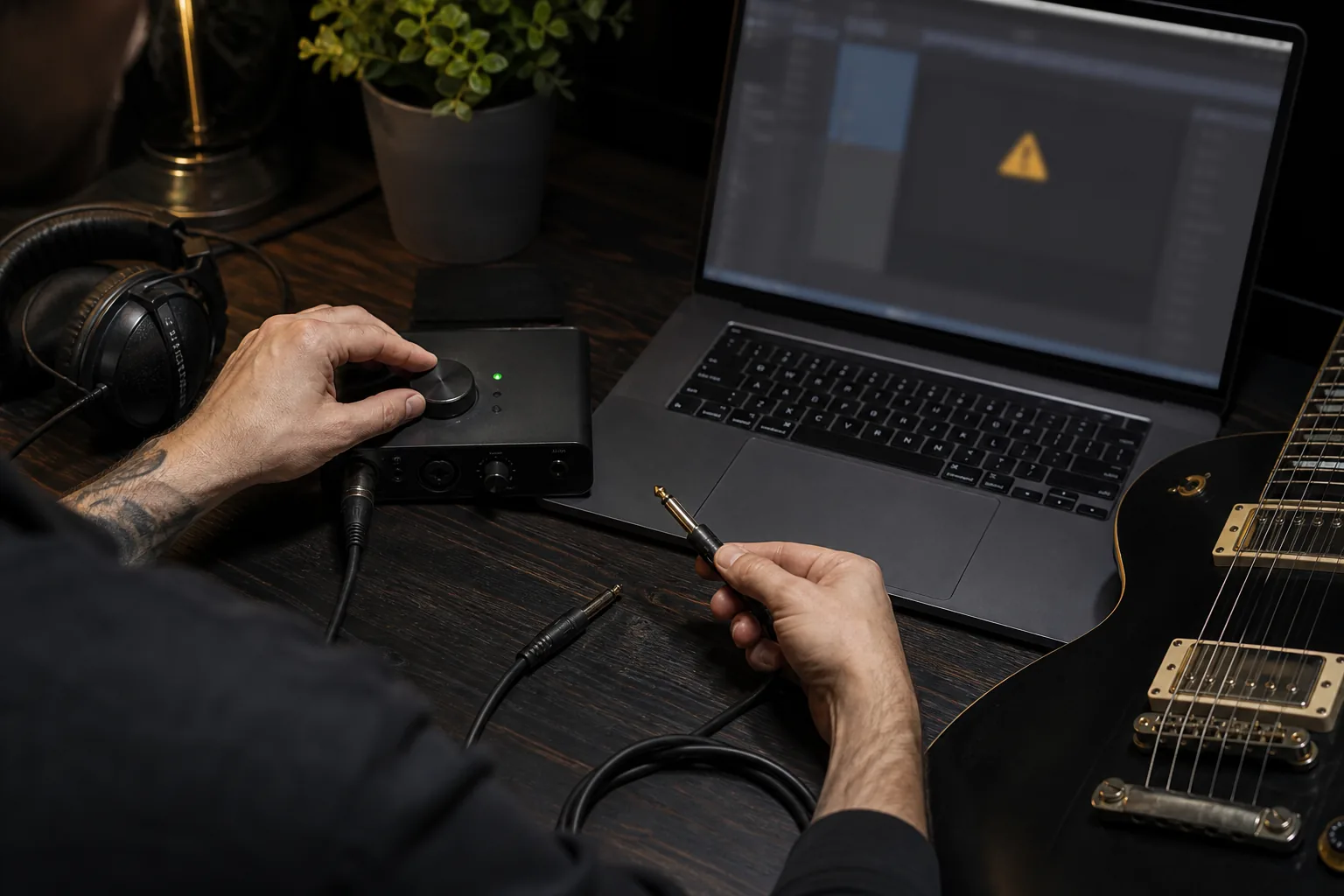
The practical answer
Test one known-good file before changing settings: it is the quickest way to separate a file problem from a Guitar Pro or audio-system problem.
A step-by-step approach
-
1
Name the exact symptom
Decide whether the file will not open, opens with an error, opens without sound, will not start playback, sounds distorted, plays the wrong music, or causes Guitar Pro to freeze or close.
-
2
Test another known-good file
Open a file that has worked before. If it opens and plays normally, focus on the downloaded file. If it fails too, focus on Guitar Pro, its audio settings, or the computer.
-
3
Redownload the affected tab
Keep the original, download a fresh copy, and make sure the expected Guitar Pro extension remains intact. Try another archive version of the song when one is available.
-
4
Install the latest Guitar Pro update
Use Help then Check for updates on Windows, or Guitar Pro then Check for updates on macOS. Guitar Pro 8 officially supports all former Guitar Pro file formats.
-
5
Check playback and audio settings
If the file opens but is silent, confirm the RSE soundbanks are installed and select the correct device and output in Audio/MIDI preferences. Also check track mute, solo, focus, and mixer levels.
-
6
Fix distorted or blocked playback
Update external-interface drivers, check the selected input and output, use a 44.1 kHz device rate where applicable, and try another buffer size. On Windows, Guitar Pro support also recommends checking microphone access and setting Audio Input to None for a no-playback problem.
-
7
Reset or escalate only after isolation
For repeatable crashes or application-wide failures, update the operating system and audio drivers, then follow the official preference-reset guidance. If the issue remains, contact support with the file, operating-system version, Guitar Pro version and build, audio-device details, and steps to reproduce.
Start with the symptom, not a random fix
A file that never opens is a different problem from a score that opens but remains silent. Write down the exact point of failure and any error message before updating settings, reinstalling software, or converting the file.
The most useful test is another known-good Guitar Pro file. If only one download fails, a fresh download or an alternative archive version is the proportionate next step. If every file fails, investigate Guitar Pro and the audio system.
If one file will not open
Download the file again and preserve its original extension. A browser interruption, incomplete transfer, or renamed file can leave Guitar Pro without the expected data. Renaming GP5 to .gp does not convert the underlying format.
Update Guitar Pro before deciding the format is unsupported. Guitar Pro states that version 8 can open all former Guitar Pro formats. If the updated application opens other files with the same extension, the problem is likely specific to that download, so try another version from the song page.
If the score opens but produces no sound
Check that playback is running and that the required track is not muted or reduced to silence. Then confirm the correct output device in Guitar Pro Audio/MIDI preferences, especially after connecting headphones, Bluetooth audio, or an external interface.
Guitar Pro support identifies missing RSE soundbanks as another common cause. Run the Guitar Pro installer and include the soundbanks if necessary. If the silence affects every file, test the selected device and preferences before blaming the score.
If playback will not start or sounds distorted
On Windows, Guitar Pro support recommends allowing application microphone access and trying Audio Input set to None when playback will not begin. This is an application-level fix, so it is most relevant when several files show the same problem.
For garbled, delayed, or distorted audio, update the selected soundcard or interface driver, verify a 44.1 kHz rate where applicable, and try another buffer size. Check that Guitar Pro is using the intended Bluetooth or external audio device rather than a disconnected output.
If it plays, but the music is wrong
A score that plays incorrect notes or an incomplete arrangement may be a transcription problem rather than a playback failure. Check the selected track, tuning, tempo, solo or focus state, and whether the score is using MIDI or RSE sounds as expected.
Compare a short passage with the recording and then try another available version. Do not reset the whole application to solve a mistake that exists only in one visitor-submitted transcription.
If Guitar Pro freezes or closes
Install current Guitar Pro, operating-system, and audio-driver updates first. The official crash guide also recommends resetting Guitar Pro preferences and reinstalling external-interface drivers when the wider application remains unstable.
Before contacting support, record the operating-system version, Guitar Pro version and build, audio-device model, exact steps, and whether the crash follows one specific file. Attach the affected file when permitted, because a repeatable sample helps distinguish file content from an environment problem.
Common questions
Sources and review notes
Product details were checked against the official sources below on 9 August 2026. Offers and software details can change, so confirm current terms before buying.