Why bars turn red in Guitar Pro—and how to fix them
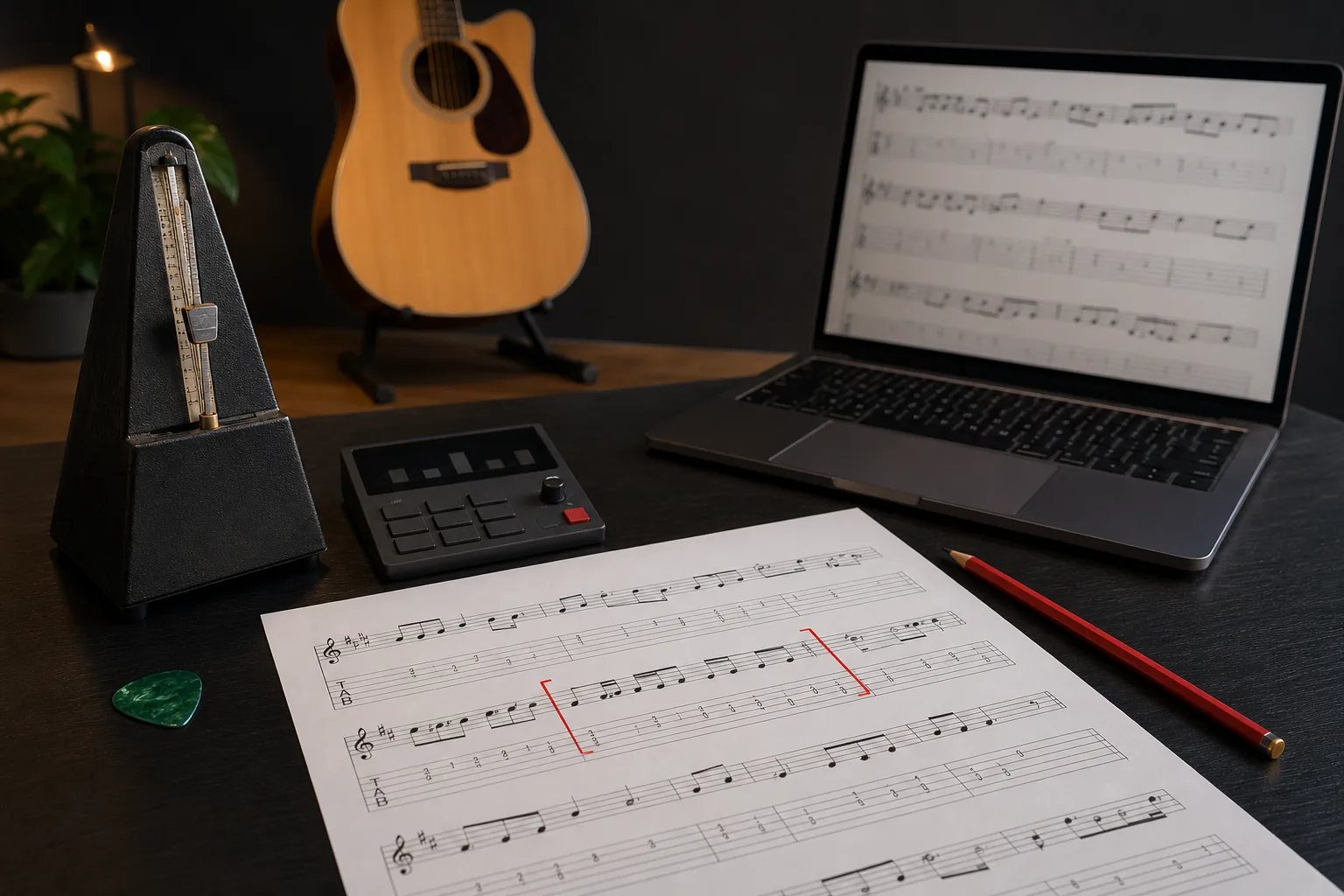
A red measure usually means its rhythmic duration does not match the active time signature. Find whether the bar is short or overfilled, then correct the rhythm, metre, or special bar type instead of merely hiding the warning.
The practical answer
Use Check Bar Duration, read the bar total, and repair the first invalid measure. Later red bars are often a consequence of that first mismatch.
A step-by-step approach
-
1
Run the duration check
Use Tools > Check Bar Duration or the F4 shortcut in Guitar Pro 8 to identify incomplete measures, then begin with the earliest unexpected error.
-
2
Read the current bar total
Compare the amount entered with the amount required by the active time signature so you know whether notes or rests are missing or exceed the bar.
-
3
Inspect every voice
Confirm the cursor is in the intended voice and check note values, dots, tuplets, ties, and rests; hidden material in another voice can account for the mismatch.
-
4
Verify the time signature
Listen for a genuine metre change and inspect the surrounding bars. Change the signature only when the music is organised in a different beat pattern.
-
5
Handle intentional exceptions
Mark a real opening pickup as an anacrusis and check repeats or alternate endings carefully rather than filling musical silence with arbitrary notes.
-
6
Repair and replay the transition
Use rests or Guitar Pro’s Complete/Reduce Bars with Rests tool where appropriate, then play from before the repaired bar to confirm the timing remains aligned.
What a red measure is telling you
In a 4/4 bar, the entered durations must add up to four quarter-note beats in each relevant voice. The same principle applies to other metres. A mixture such as dotted notes, tuplets, ties, and multiple voices can make the total less obvious than the fret numbers suggest.
Guitar Pro 8 provides Check Bar Duration under Tools and can combine it with Complete/Reduce Bars with Rests. Use these as diagnostics; confirm that any inserted or reduced rest represents the music you intend.
Fix the first unexpected error first
Start at the earliest bar that should be complete. If a note, rest, or metre change is missing there, later material may appear displaced even when its local pattern is correct. Repairing downstream measures first can create a second set of timing problems.
Compare the bar with the recording at a slow speed and count its beat groups aloud. This distinguishes a missing subdivision from a real change such as 4/4 to 3/4, 6/8, or another metre.
Check rhythm details that are easy to overlook
A dotted note lasts longer than its undotted value, while a tuplet changes how notes divide the beat. A tied note continues duration across its boundary. Confirm these markings and the selected voice instead of adding a rest merely to make the warning disappear.
If the bar is overfilled, reduce the wrong duration or move material to the next bar. If it is short, decide whether the missing time is a rest, a sustained value, a tuplet, or evidence that the metre is wrong.
Treat pickups and deliberate irregularity correctly
An opening pickup, or anacrusis, is intentionally shorter than a full first measure. Mark it with the relevant bar setting rather than padding it to a full bar, and verify how its duration interacts with repeats and the closing measure.
Error-highlighting preferences can make a warning disappear, but they do not change the underlying timing. Leave validation visible while editing so a genuine mismatch is not mistaken for a display preference.
Common questions
Sources and review notes
Product details were checked against the official sources below on 9 August 2026. Offers and software details can change, so confirm current terms before buying.