How to add and sync an Audio Track in Guitar Pro 8
Guitar Pro 8 can attach a recording to a score for manual transcription and practice. The useful part is not merely importing the audio—it is creating reliable sync points so the score and performance stay aligned from beginning to end.
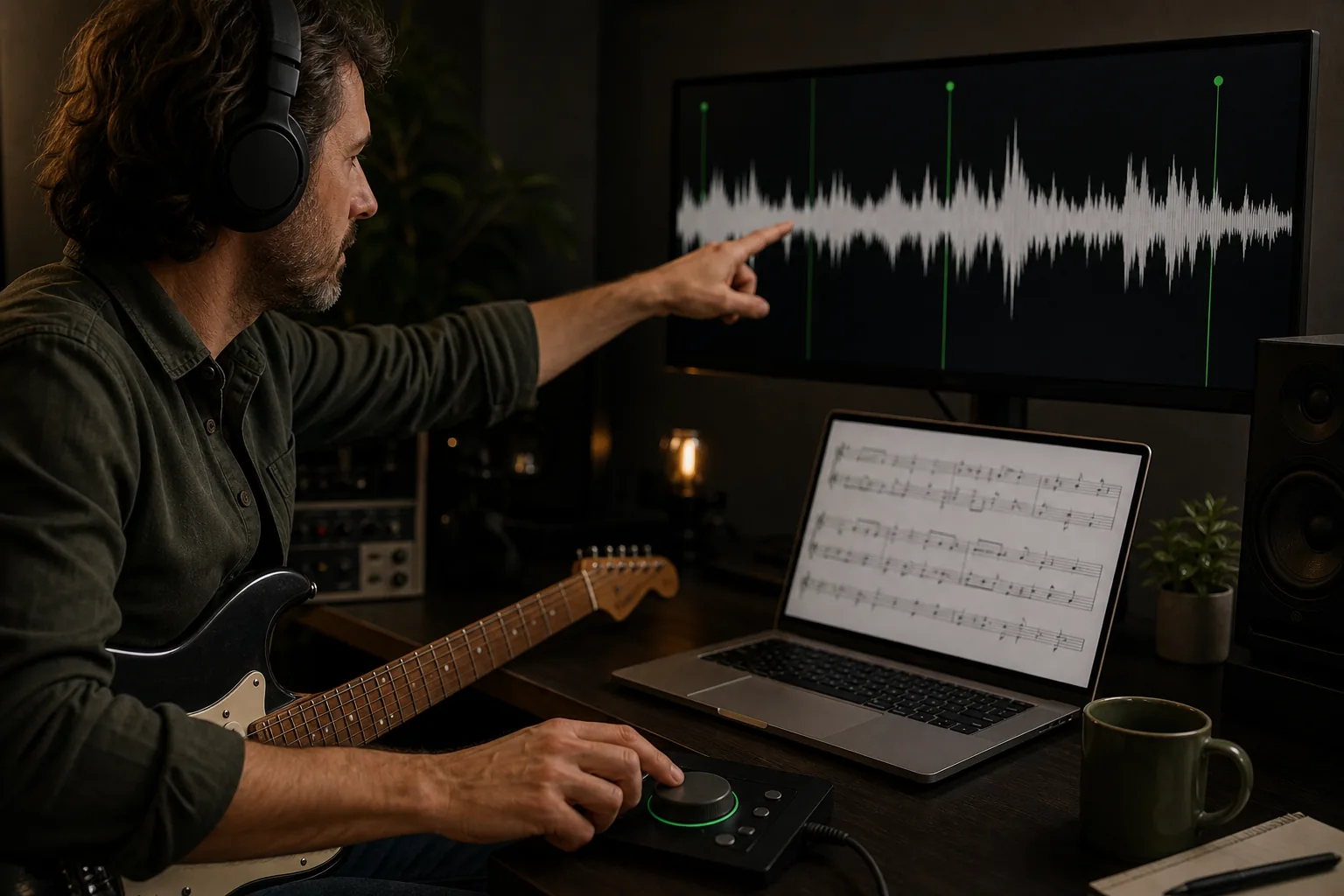
The practical answer
Set a trustworthy first downbeat, add widely spaced sync points, then add detail only where the live performance drifts.
A step-by-step approach
-
1
Prepare the score and recording
Save a working copy, confirm the score structure is broadly correct, and use a locally available audio file that you have the right to use.
-
2
Add the Audio Track
Open Guitar Pro 8’s Audio Track controls, select the recording, and confirm it plays clearly before editing synchronization.
-
3
Locate the first reliable downbeat
Find a clear musical attack in both the score and waveform, accounting for silence, a spoken count, or a pickup before bar one.
-
4
Create the initial synchronization
Link that score position to the matching point in the recording and test playback from slightly before the marker.
-
5
Add later sync points
Check a later chorus or section boundary, add another point where necessary, and let Guitar Pro map the tempo between trustworthy anchors.
-
6
Refine and verify
Add points near genuine tempo changes or drift, then replay the opening, middle, transitions, and ending without assuming visual alignment is sufficient.
What Audio Track can and cannot do
The Audio Track feature can place a recording alongside a Guitar Pro score. It is useful for manual transcription, playing with a backing track, comparing a tab with the original performance, or adding recorded teaching material.
It does not listen to an MP3 and generate an editable Guitar Pro score. Notes, rhythm, tracks, and techniques still need to be entered or corrected by a person, which is why a clear synchronisation workflow matters.
Choose a downbeat you can recognise twice
The beginning of an audio file may contain silence, room noise, a count-in, or a pickup. Match a clear attack in the waveform to the corresponding beat or note in the score rather than assuming both timelines begin together.
Play from just before the point and listen for one combined attack. If the score consistently sounds early or late, move the anchor before adding more points; a weak first anchor makes every later decision harder.
Use sync points to describe real tempo
A live performance rarely stays at one machine-perfect tempo. Add a later sync point at an obvious section boundary and inspect how well the intervening music aligns. Start with a sparse map so one inaccurate marker does not create abrupt local tempo changes.
Add closer points around a deliberate ritardando, tempo change, free intro, or section that still drifts. Prefer strong downbeats and section starts over ambiguous sustained notes.
Make the recording easier to hear and verify
Guitar Pro’s Audio Track tools include pitch, tempo, and frequency-oriented controls that can help isolate or inspect a passage. Use them as listening aids, then return to a neutral setting to check the complete musical result.
Verify at several distant points: the first verse, a later chorus, any tempo transition, and the final bars. Save the file with its audio association and keep a note of the source recording because different releases or edits can have different timing.
Common questions
Sources and review notes
Product details were checked against the official sources below on 9 August 2026. Offers and software details can change, so confirm current terms before buying.