Connect a MIDI device to Guitar Pro and use MIDI capture
A MIDI device can speed up pitch entry in Guitar Pro, but the feature is best treated as controlled note capture rather than live transcription. Guitar Pro 8 explicitly states that MIDI capture is not real-time capture, so rhythm, duration, voices, and cleanup still need deliberate editing.
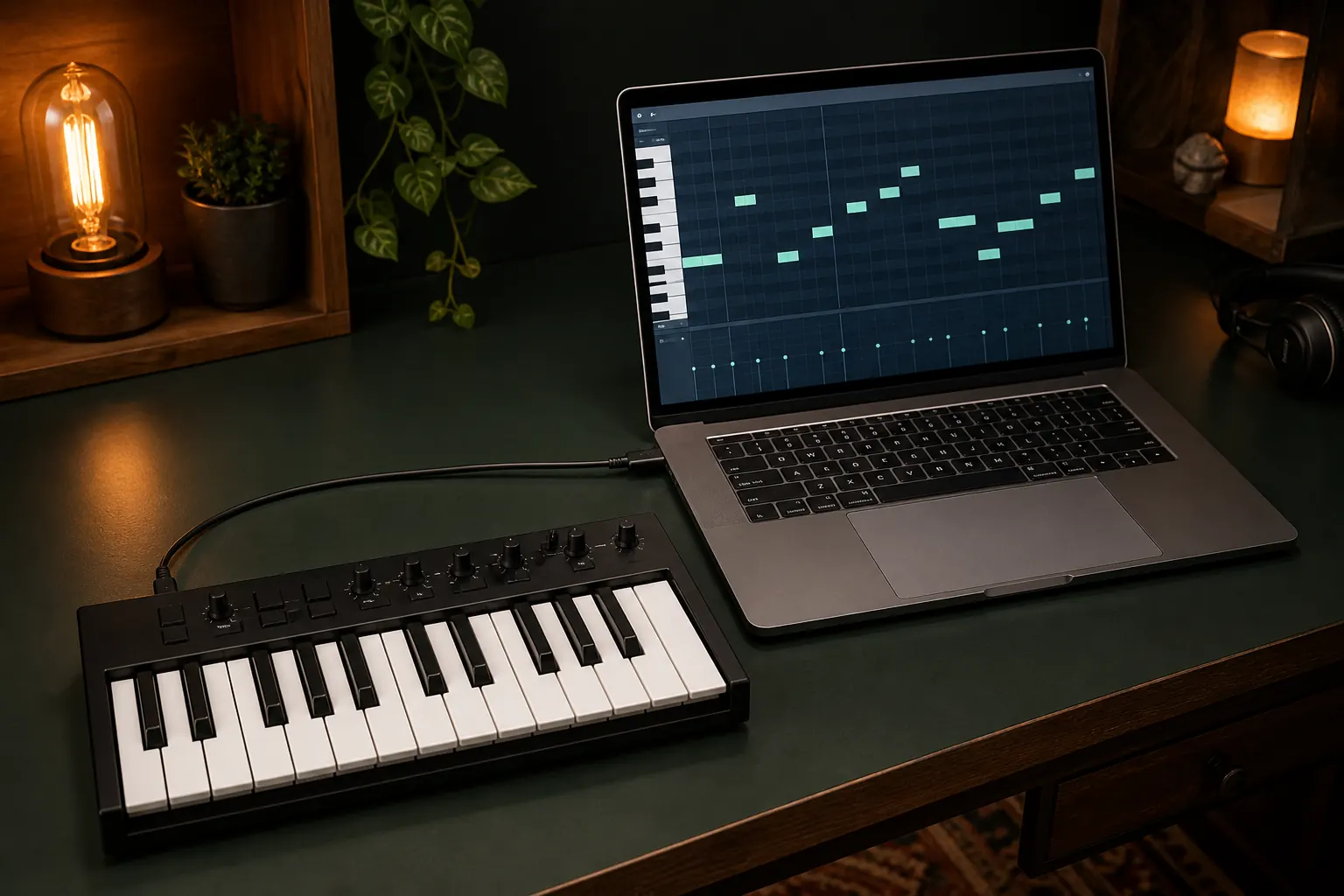
The practical answer
Use MIDI capture to enter pitches into a prepared score, not as an automatic performance-to-notation converter.
A step-by-step approach
-
1
Connect the controller
Connect and power the MIDI device before opening Guitar Pro so the operating system can make it available.
-
2
Select it in preferences
Open Audio/MIDI preferences and choose the controller as the MIDI input device.
-
3
Prepare the destination
Select the correct track, bar, beat, voice, and note duration before capturing pitches.
-
4
Enable MIDI capture
Turn on MIDI capture from the Sound menu, then play the notes or chords you want to enter.
-
5
Review the notation
Check octave, enharmonic spelling, duration, rests, voice allocation, and playable string positions before moving on.
What MIDI capture can do
A MIDI keyboard sends note events, giving Guitar Pro a faster way to receive pitches and chords than clicking each note onto a staff. It is particularly useful for keyboard parts, chord voicings, and passages where pitch entry is slower than rhythm preparation.
It does not listen to the sound of a guitar, microphone, or audio file. MIDI is control data, not recorded audio, so an audio interface or ordinary USB microphone does not become a MIDI note source unless another device or application converts the performance first.
Connect the device reliably
Connect the controller before launching Guitar Pro, then choose it in Audio/MIDI preferences. On Windows the preferences are reached from the File menu; on macOS they are under the Guitar Pro application menu. If the device is absent, the official support advice is to unplug it and reconnect it.
Confirm that the operating system recognises the device and avoid unnecessary hubs while troubleshooting. If another music application is holding the MIDI port exclusively, close that application, reopen Guitar Pro, and check the input list again.
Prepare rhythm before pitch capture
Select the destination track, bar, voice, and starting beat, then choose the note value you intend to enter. For a passage with changing durations, build the rhythmic framework in short phrases rather than expecting one live take to create finished notation.
Capture pitches into that structure and advance deliberately. Chords are useful when the notes should share one duration; melodic material is often easier one duration group at a time. Keep the metronome for checking the result, not as proof that the capture is recording timing.
Understand the non-real-time limitation
Guitar Pro support explicitly warns that MIDI capture in Guitar Pro 8 is not a real-time capture feature. It should not be described as a DAW-style MIDI recorder, and it will not faithfully turn expressive live timing, sustain-pedal detail, velocity, or every controller gesture into polished notation.
If preserving a performance is the goal, record MIDI in a DAW or notation application designed for real-time transcription, quantise and edit it there, then import a supported interchange format if appropriate. Expect cleanup after any automated transcription workflow.
Clean up the captured notes
Check octave, accidentals, ties, rests, and voice assignment immediately. A pitch can be technically correct while being spelled badly for the key or placed on an impractical string when the destination is a guitar or bass track.
Work in short batches and play each batch back before continuing. This catches a shifted cursor or wrong duration early and keeps MIDI capture a time-saving input method instead of producing a long passage that must be rebuilt.
Common questions
Sources and review notes
Product details were checked against the official sources below on 9 August 2026. Offers and software details can change, so confirm current terms before buying.