Set up Guitar Pro Line-In with an audio interface
Line-In lets you hear a connected instrument through the effects assigned to a Guitar Pro track while the score plays. It is live monitoring, not automatic transcription or note entry.
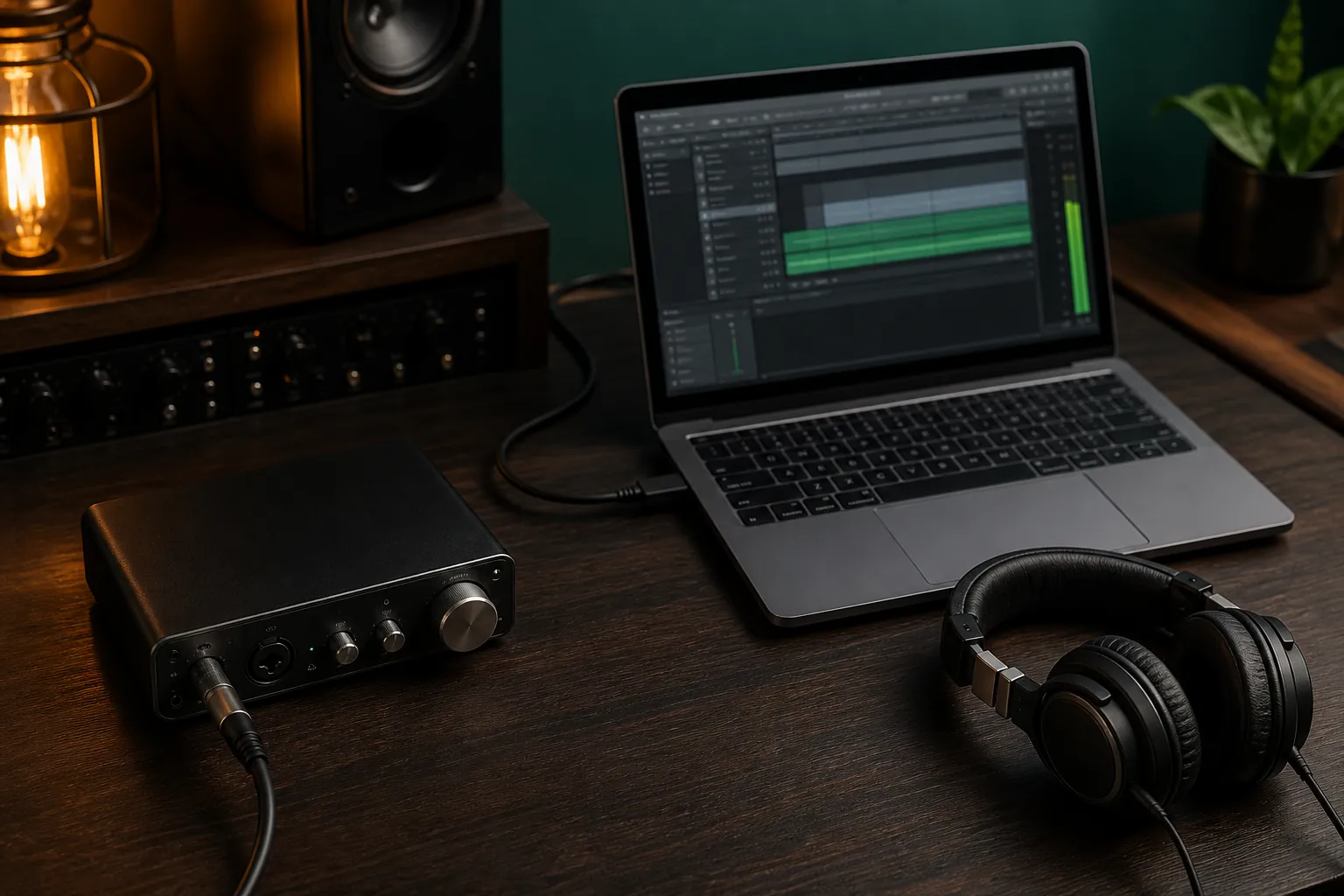
The practical answer
Use the same interface for input and output, select the correct input, set gain before effects, and disable Line-In when the session ends.
A step-by-step approach
-
1
Connect the hardware
Connect the instrument to an interface input and connect speakers or headphones to the interface where possible.
-
2
Select the interface
In Audio/MIDI preferences, choose the interface as the audio device, input, and output.
-
3
Activate Line-In
Enable the Line-In control and select the physical input socket receiving the instrument.
-
4
Set a clean signal
Adjust hardware and software gain so normal playing is strong but does not clip, then add the noise gate cautiously.
-
5
Build the practice mix
Choose whether to use the track effects, balance Line-In against playback, and use the limiter as protection rather than a gain boost.
-
6
Turn Line-In off
Disable Line-In after practising so Guitar Pro stops processing the live input.
Understand what Line-In does
Line-In receives the audio signal from an instrument connected through an audio interface and monitors it through Guitar Pro. It can use the selected track’s effect chain, so sound changes in the track can follow the playback cursor.
It does not convert guitar audio into editable notes. If the goal is note entry or control data, investigate MIDI capture with compatible hardware instead of expecting Line-In to transcribe performance.
Build a reliable hardware signal path
Connect the instrument to the correct interface input with a suitable cable, then connect headphones or speakers to the interface. Guitar Pro recommends using the same sound card for input and output, which avoids clock, routing, and latency complications.
Install the manufacturer’s current driver where required. On Windows, an ASIO-compatible interface is the practical low-latency route; macOS uses Core Audio-compatible hardware.
Choose the correct input before adjusting tone
Open Audio/MIDI preferences and select the interface and the specific input socket receiving the instrument. Enable Line-In only after routing is correct, then play firmly and set input gain below clipping.
If the meter shows nothing, check the cable, input type, hardware gain, and selected channel. If the meter moves but you hear nothing, check the output device, monitoring volume, and whether Line-In is actually enabled.
Set effects, noise gate, volume, and limiter
Use the track effect chain when you want the score’s modeled sound; disable it when an external processor already supplies the tone or when you need an uncoloured tuning signal. Balance Line-In volume against the backing tracks rather than compensating with excessive input gain.
Raise the noise gate only until idle noise becomes acceptable, because an aggressive gate cuts quiet notes and sustain. Treat the limiter as feedback and overload protection, not as a substitute for correct gain staging.
Control latency and close the session cleanly
If the instrument feels delayed, use wired monitoring, the interface’s proper driver, and a smaller buffer that remains crackle-free. Close other audio-heavy applications while diagnosing and avoid Bluetooth monitoring for timing-critical practice.
Mute the score’s guitar track when playing that part yourself, then balance the remaining arrangement around the live input. Turn Line-In off afterwards; official support notes that leaving it active keeps processing the input and may leave unwanted noise.
Common questions
Sources and review notes
Product details were checked against the official sources below on 9 August 2026. Offers and software details can change, so confirm current terms before buying.