How to use multiple voices in Guitar Pro without broken rests
Voices let one track carry independent rhythmic layers. They are ideal for a sustained bass under a moving melody, but only when each voice is rhythmically complete and edited deliberately.
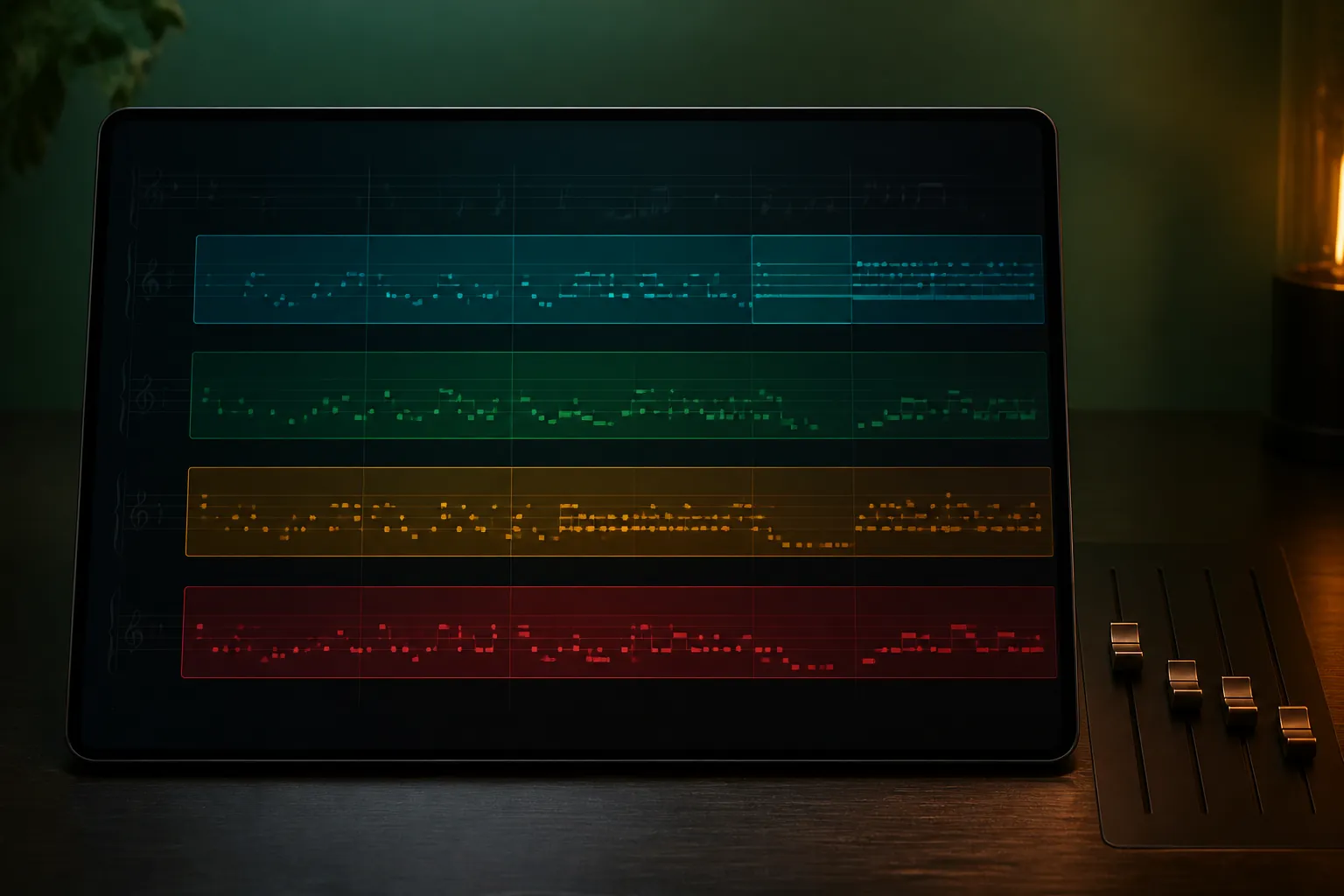
The practical answer
Assign each musical layer to a consistent voice, complete every bar inside every active voice, and use all-voice display only for review.
A step-by-step approach
-
1
Identify independent layers
Separate music that needs different durations, such as a bass line, inner harmony, and melody.
-
2
Assign voice roles
Choose a consistent voice number for each layer across the passage.
-
3
Enter one voice at a time
Complete its rhythm across each bar before switching to the next voice.
-
4
Fill intentional silence
Use rests so every active voice has a complete duration in each bar.
-
5
Review together and separately
Use the combined view for engraving, then isolate voices to locate extra rests or incorrect durations.
Use a new voice only for an independent rhythm
Voices are not separate tracks and do not exist merely to colour notes differently. Use them when notes on the same staff must start or end independently, such as a held bass note beneath a syncopated upper melody.
If all notes share the same rhythm, keep them in one voice as a chord. Unnecessary voices add rests, complicate editing, and can make exported notation harder to read.
Give each voice a stable musical role
A predictable assignment—bass in voice 2, melody in voice 1, for example—makes later corrections much easier. Guitar Pro supports up to four voices, and its official tips show the same approach on drum parts with independent rhythmic streams.
Avoid moving a line between voice numbers simply to make one bar look cleaner. Consistency helps ties, stems, rests, copy and paste, and visual review behave predictably across the section.
Complete the rhythm inside every voice
Each active voice must account for the full duration of the bar with notes and rests. A voice can therefore be mathematically incomplete even when the combined music sounds full.
Enter one voice across the bar, add its required rests, and run Check Bar Duration before switching. This isolates arithmetic errors instead of hiding them behind notes in another voice.
Control rests and visual collisions
Rests are part of a voice’s timing, but not every automatically placed rest needs to dominate the final page. First correct the rhythm; then use the available engraving and voice-display controls to improve spacing and visibility.
Guitar Pro’s Stylesheet can colour voices, which is useful while diagnosing fingerstyle polyphony. Return to a publication-appropriate appearance after the voice assignments and durations are correct.
Debug by isolating the layer
When notes refuse to tie, rests appear unexpectedly, or a copied passage shifts, switch to the suspected voice and inspect it alone. Confirm cursor voice before deleting, because deleting in the wrong voice can leave the visible problem untouched.
For a complicated bar, temporarily simplify it to one voice, confirm the basic rhythm, then rebuild layers one at a time. This is faster than repeatedly adjusting a dense combined view without knowing which layer is wrong.
Common questions
Sources and review notes
Product details were checked against the official sources below on 9 August 2026. Offers and software details can change, so confirm current terms before buying.